
A few months ago, I realized something embarrassing.
I spent 45 minutes looking for a Google Doc I had already opened twice that same morning.

Not because I’m disorganized. I just had too many tabs open, too many Slack messages coming in, and too many “quick tasks” piling up. By 6 PM, I felt busy all day but somehow still behind.
That was the point where I stopped treating AI tools like shiny internet toys and started using them like actual work assistants.
And honestly? Some of them changed the way I work faster than any productivity app ever did.
Not every AI tool is useful. A lot of them promise to “revolutionize productivity” and end up creating more work. I tested dozens of them over the past year while managing content, emails, meetings, research, and side projects.
A handful genuinely saved me hours every week.
These are the tools I still use regularly — not because they’re trendy, but because they remove boring work I never wanted to do in the first place.
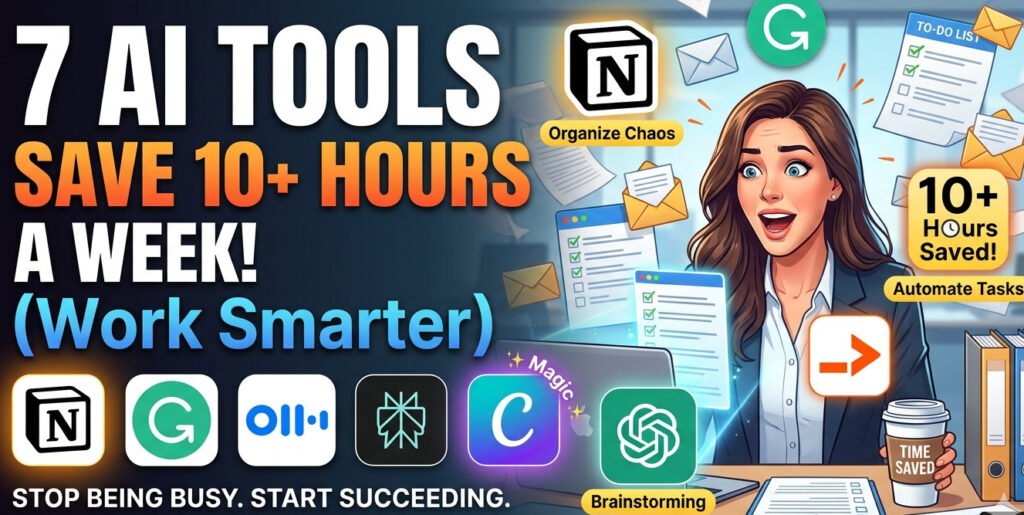
1. Notion AI — Surprisingly Good for Organizing Chaos
Notion
I originally used Notion like a digital junk drawer.
Random notes.
Half-finished ideas.
Meeting notes I never looked at again.
Then I tried the AI features built into it.
What impressed me wasn’t the writing. It was the organization.
For example, after messy meeting notes, I can ask Notion AI to:
- Pull out action items
- Create summaries
- Turn notes into task lists
- Generate project updates
That alone saves me from rereading pages of scattered thoughts.
Real-life example
Last month I had notes from:
- two Zoom calls,
- one client voice memo,
- and screenshots from Slack.
Normally I’d spend an hour organizing everything.
Instead, I dumped it into Notion and asked the AI to create:
- A clean summary
- Priority tasks
- Questions needing follow-up
Took maybe 10 minutes.
Where it struggles
Sometimes it confidently organizes nonsense.
If your notes are messy enough, the AI may misunderstand priorities completely. I learned to skim everything before trusting it.
Still worth it.
also read
2. Grammarly — More Useful Than I Expected
Grammarly
I ignored Grammarly for years because I thought it was just a spell checker.
Turns out, it’s better at catching awkward writing than basic grammar mistakes.
And when you write a lot of emails, blog posts, proposals, or reports, awkward writing wastes time.
You end up rewriting sentences over and over.
The hidden time saver
Tone adjustment.
This matters more than people think.
I once sent a client email that sounded perfectly normal in my head but came across strangely cold. Grammarly flagged it before I hit send.
That probably saved a difficult conversation.
Now I use it mainly for:
- shortening overly long sentences,
- improving clarity,
- and removing repetitive wording.
Important lesson
Don’t accept every suggestion automatically.
Sometimes Grammarly removes personality from your writing and makes everything sound corporate.
I reject plenty of suggestions.
Use it like an editor, not a boss.
3.Otter.ai— The Meeting Tool I Wish I Found Earlier
Otter.ai
If you attend meetings regularly, this tool can save ridiculous amounts of time.
Before using Otter.ai, I constantly wrote notes during calls because I was afraid of forgetting something important.
The problem?
Writing notes while listening makes you worse at both.
Now Otter records and transcribes meetings automatically.
That means I can focus on the conversation instead of typing like a maniac.
Why it’s actually useful
The searchable transcripts are the real feature.
A week later, instead of thinking:
“What did Sarah say about the deadline?”
…I can just search the transcript.
That’s massive for remote work.
One unexpected benefit
It reduced follow-up confusion.
After meetings, people often remember conversations differently. Having a transcript removes a lot of that ambiguity.
Mistake to avoid
Don’t rely entirely on AI summaries.
Sometimes important nuance gets lost.
I still mark key moments manually during important meetings.
4. Perplexity AI — Faster Than Traditional Google Searches
Perplexity AI
This tool became my shortcut for research-heavy tasks.
Instead of opening 12 browser tabs, I can ask one focused question and get summarized answers with sources attached.
That matters because research rabbit holes are productivity killers.
You start looking up one thing…
then suddenly you’re reading a Reddit thread from 2019 about mechanical keyboards.
Where I use it most
- Product comparisons
- Quick technical explanations
- Research summaries
- Fact-checking
- Learning unfamiliar topics
Real example
I recently needed to compare email marketing tools for a project.
Normally:
- open multiple review sites,
- compare pricing pages,
- read Reddit opinions,
- watch YouTube reviews.
Perplexity condensed the first research phase into about 15 minutes.
I still verified important details manually, but the time savings were huge.
Important warning
AI-generated research can still be wrong.
Never blindly trust summaries for legal, financial, or technical decisions.
Use it as a starting point, not the final authority.
5. Canva Magic Design — For People Who Hate Design Work
Canva
I’m not a designer.
I can tell when something looks bad, but creating good visuals used to take forever.
Especially:
- thumbnails,
- social media graphics,
- presentation slides,
- and blog images.
Canva’s AI tools sped this up dramatically.

What helped most
Magic Design and AI-generated layouts.
Instead of staring at a blank canvas wondering where to place text, I get a starting structure instantly.
That removes decision fatigue.
Real workflow
Now I:
- Upload rough content
- Let Canva generate layout options
- Pick the closest one
- Customize fonts/images slightly
Done.
What used to take 90 minutes now takes around 20.
Common mistake
People overuse AI-generated templates and end up with graphics that all look identical.
Spend five extra minutes customizing things slightly. It makes a big difference.
6. Zapier AI — The Quiet Productivity Monster
Zapier
This one takes more setup, but the payoff is huge.
Zapier connects apps together so repetitive tasks happen automatically.
At first, automation sounded unnecessary to me.
Then I realized how much time I wasted doing tiny repetitive actions every day.
Stuff like:
- copying form responses into spreadsheets,
- sending repetitive emails,
- creating tasks manually,
- moving files around.
Tiny tasks feel harmless individually.
Together, they eat hours.
Automation I still use weekly
When someone fills out my contact form:
- their info goes into Notion,
- a task gets created,
- and a follow-up email draft appears automatically.
I set it up once.
Now it runs quietly in the background.
Lesson I learned
Start small.
My first automation setup was way too complicated and broke constantly.
Simple automations are usually the most reliable.
7. ChatGPT — The One That Replaced Half My Busywork
ChatGPT
I know this one sounds obvious, but most people still use it badly.
For a long time, I only used ChatGPT to ask random questions. It was helpful, but not life-changing.
The real time savings started when I began treating it like a junior assistant instead of a search engine.
Now I use it for:
- Drafting article outlines
- Cleaning messy notes
- Summarizing long emails
- Rewriting awkward messages
- Brainstorming titles
- Explaining technical topics simply
- Creating first drafts for client work
One thing that surprised me: it’s much better when you give context.
Bad prompt:
“Write a blog post about fitness.”
Better prompt:
“Write a casual blog post for beginners who work desk jobs and struggle to stay active.”
Huge difference.
What actually saves time
The biggest win isn’t that ChatGPT writes everything perfectly.
It doesn’t.
The win is skipping the blank-page phase.
Starting from zero is mentally exhausting. Editing something rough is much faster.
I probably save 3–4 hours a week from this alone.
Mistake I made early
I used to copy AI output directly.
Bad idea.
The writing sounded polished but weirdly empty. Readers can tell when something feels generic.
Now I always:
- Add personal examples
- Rewrite sections in my own tone
- Remove repetitive phrases
- Fact-check everything important
That combination works much better.
How I Actually Save 10 Hours a Week With These Tools
The biggest misconception about AI productivity is that one magical app changes everything.
That’s not how it works.
The real gains come from removing tiny friction points repeatedly throughout the week.
Here’s roughly where my saved time comes from now:
| Task | Time Saved Weekly |
|---|---|
| Draft writing & brainstorming | 3–4 hours |
| Meeting notes & summaries | 2 hours |
| Research & searching | 1–2 hours |
| Graphic design tasks | 1–2 hours |
| Repetitive admin work | 2 hours |
Individually, none of these feel life-changing.
Combined? Huge difference.
Common Mistakes People Make With AI Tools
1. Trying too many tools at once
I made this mistake immediately.
I signed up for everything:
- AI writing apps,
- AI calendars,
- AI task managers,
- AI browsers.
It became exhausting.
Pick one problem first.
Fix that.
Then expand gradually.
2. Expecting perfect results
AI tools are assistants, not replacements for thinking.
You still need judgment.
The best results usually happen when:
- AI handles the boring first draft,
- and humans handle refinement.
3. Automating broken workflows
This is a sneaky one.
If your process is already messy, automation just creates faster chaos.
Before adding AI, simplify the workflow first.
Then automate it.
My Personal Recommendation for Beginners
If you’re just starting, don’t overcomplicate it.
Here’s the simplest setup I’d recommend:
Start with:
- Notion for organizing work
- Grammarly for editing
- Canva for visuals
Once you get comfortable, add:
- Otter.ai for meetings
- Zapier for automation
- ChatGPT for deeper writing and brainstorming support
You don’t need a futuristic AI setup.
You just need fewer repetitive tasks stealing your attention every day.
And honestly, that’s what surprised me most about these tools.
The biggest benefit wasn’t saving time.
It was getting mental energy back.


Hi, I’m ALI CHAUDHARY, the creator of Isoar. I started this platform out of my passion for technology and my curiosity to explore how it shapes our everyday lives. I love researching new tools, writing about emerging tech trends, and sharing practical tips that help people stay ahead in the digital age. Through Isoar, I aim to make technology accessible, useful, and exciting for everyone.
Pingback: How I Got My First 10K TikTok Followers In Pakistan Without Buying Fake Followers